Third-Party Link

You are being directed to a Third Party site. NASA is not responsible for how third-party sites use any information provided. Users are encouraged to review the privacy policy and/or terms and conditions of the Third Party sites to fully understand what information is collected and how it is used.

Explore the 14 challenges and form or join a team today.

Space Apps Logo 2026 color
  • About Us
    • Space Apps by the Numbers
    • Meet the Team
    • Brand Guidelines
    • Blog
      • 2025
      • 2024
      • 2023
    • Contact Us
    • About Awards
    • 2025 Global Winners
    • 2025 Global Finalists
    • 2025 Honorable Mentions
    • 2025 Global Nominees
    • 2026 Hackathon
    • 2026 Local Events
    • 2026 Challenges
    • Find a Team
    • Resources
      • Participant FAQs
      • Participant Guides
    • 2026 Space Agency Partners
    • or

September 23, 2026

Team Formation Guide

More FromTeam Formation Guide
  • About Teams
  • Navigating the Hackathon: Challenge Selection and Team Formation
  • Creating a New Team & Being a Team Owner
  • Joining an Existing Team
  • Connecting With Your Team
  • Editing Team Pages
  • Choosing a Challenge
Back to all Resources

About Teams

Teams are an important part of the NASA Space Apps Challenge as they are required for project submission and allow you to connect with like-minded problem solvers from your own community and around the world! Participants are encouraged to create teams that include individuals with varied skill sets and backgrounds. An assorted team provides you with the opportunity to learn from one another and sets your team up for hackathon success.

NASA Space Apps is funded by NASA's Science Mission Directorate through a contract with Booz Allen Hamilton, Mindgrub, and SecondMuse.

Copyright ©2026 NASA | Privacy Policy | Legal | Contact | Resources

Connect with #SpaceApps

Do I need a team to participate?

Yes. While a participant is allowed to create a team and submit a project independently, we encourage all participants to be part of an actual team. We have found that the most successful projects come from teams of individuals with a variety of skills and backgrounds. For example, we encourage participants with non-technical backgrounds to form a team with developers, designers, and people with scientific backgrounds.

How many members can be on a team?

The ideal size for a team is four to five people to balance skill sets. No more than six people are allowed per team.

Can I create or join more than one team?

No. You may only be on one team and each team may only submit a project for one challenge.

If you wish to join a new or different team, you will first need to leave your current team by selecting the “Leave Team” button on your Team Member page.

If you wish to work on a different challenge, you may update to a new challenge by editing your team.

When can I form or join a team?

You will be able to officially join or create a team on the NASA Space Apps website on September 17, 2026. You may also wait to form your team until the hackathon. You may add members to your team until the hackathon ends on November 15, 2026 (11:59 p.m. local time).

Does it matter which team member officially creates the team?

Yes. One person from each team is responsible for creating the team. That person is known as the “Team Owner.” Please note that the Team Owner’s Local Event will represent the team and will appear on the respective Local Event page. Additionally, all team members must be registered for the same Local Event.

The Local Event your team is associated with affects two things:

  1. Project Due Date: All projects must be submitted on November 15, 2026 at 11:59 p.m. (local time) in accordance with the Local Event for which your team is registered. Please note: *If your team is registered for the Universal Event, your project must be submitted in accordance with the local time of the person who created the team.
  2. Project Judging: During the first round of judging, your team’s project will be evaluated by the Local Judges at the Local Event for which your team is registered.
How do I create or join a team?
  1. Create a NASA Space Apps account.
  2. Register for the 2026 NASA Space Apps Challenge.
  3. Choose a Local Event.
  4. Create or join a team registered from the same Local Event. Teams may have no more than six (6) members. Teams of four to five (4-5) members with a variety of skills and ideas are the most successful. NASA Space Apps is all about collaboration, after all!

For a step-by-step video, check out Navigating the Hackathon: Challenges Selection and Team Formation.

Navigating the Hackathon: Challenge Selection and Team Formation

Creating a New Team & Being a Team Owner

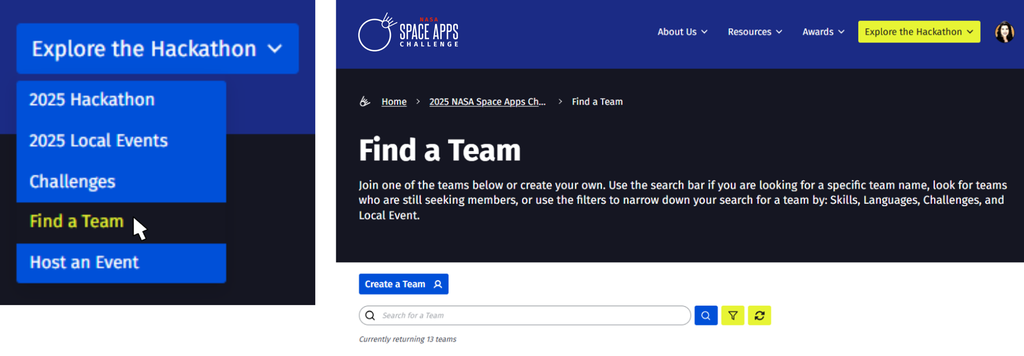
Method 1: From the "Find a Team" Page

  1. From the NASA Space Apps main menu, select “Explore the Hackathon” -> “Find a Team.”
  2. Click the blue “Create a Team” button.
Find_a_Team_Join.logo

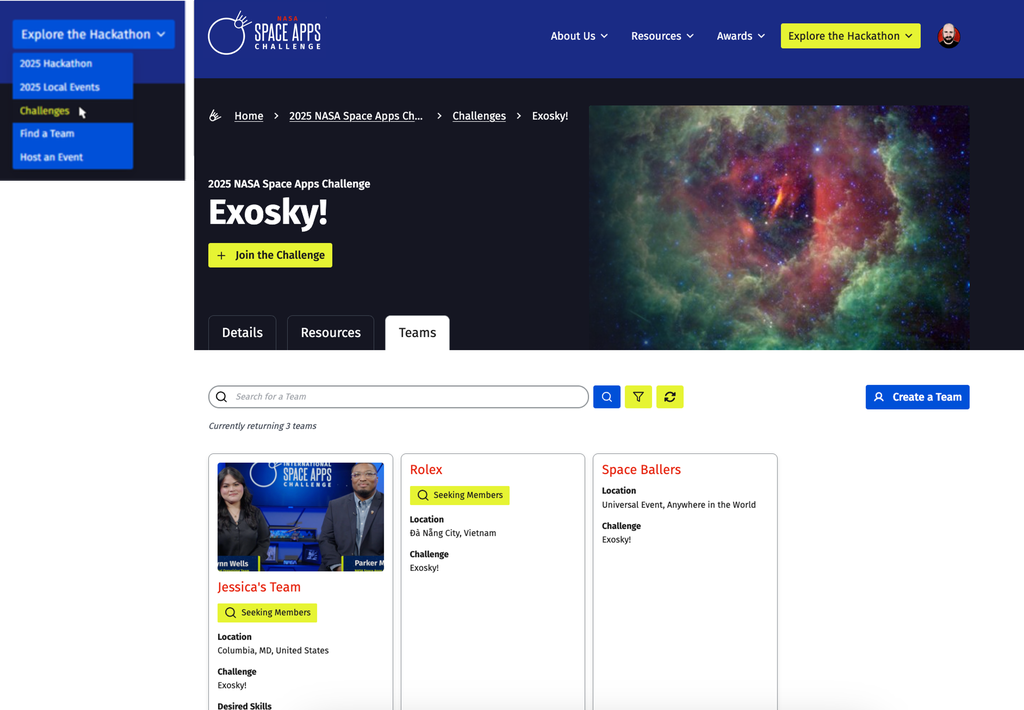
Method 2: From the "Challenges" Page

  1. From the NASA Space Apps main menu, select “Explore the Hackathon” -> “Challenges.”
  2. Find and select a challenge you’re interested in.
  3. Navigate to the Teams tab and then click the blue “Create a Team” button on the page.
Create Team_Challenges

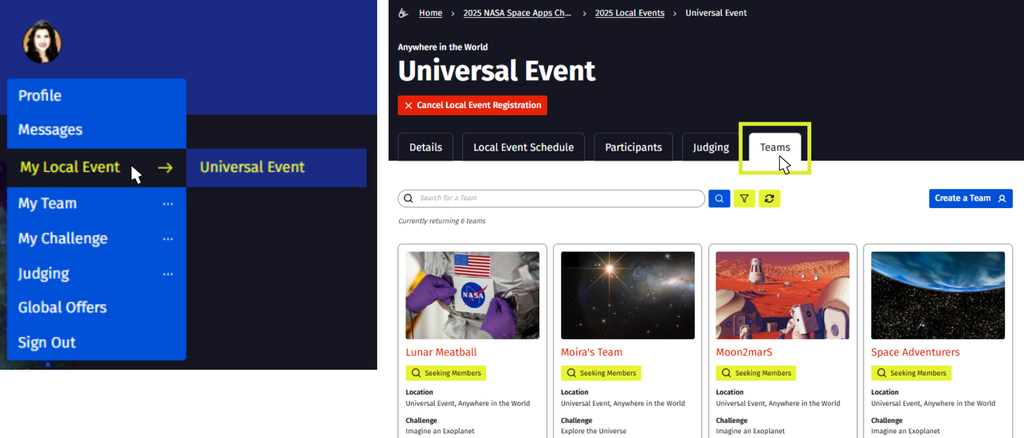
Method 3: From Your Local Event Page

  1. Go to your NASA Space Apps profile icon and select "My Local Event."
  2. Navigate to the "Teams" tab and click the blue “Create a Team” button.
My Local Event Page_Seeking Members

Final Step: Create Your Team

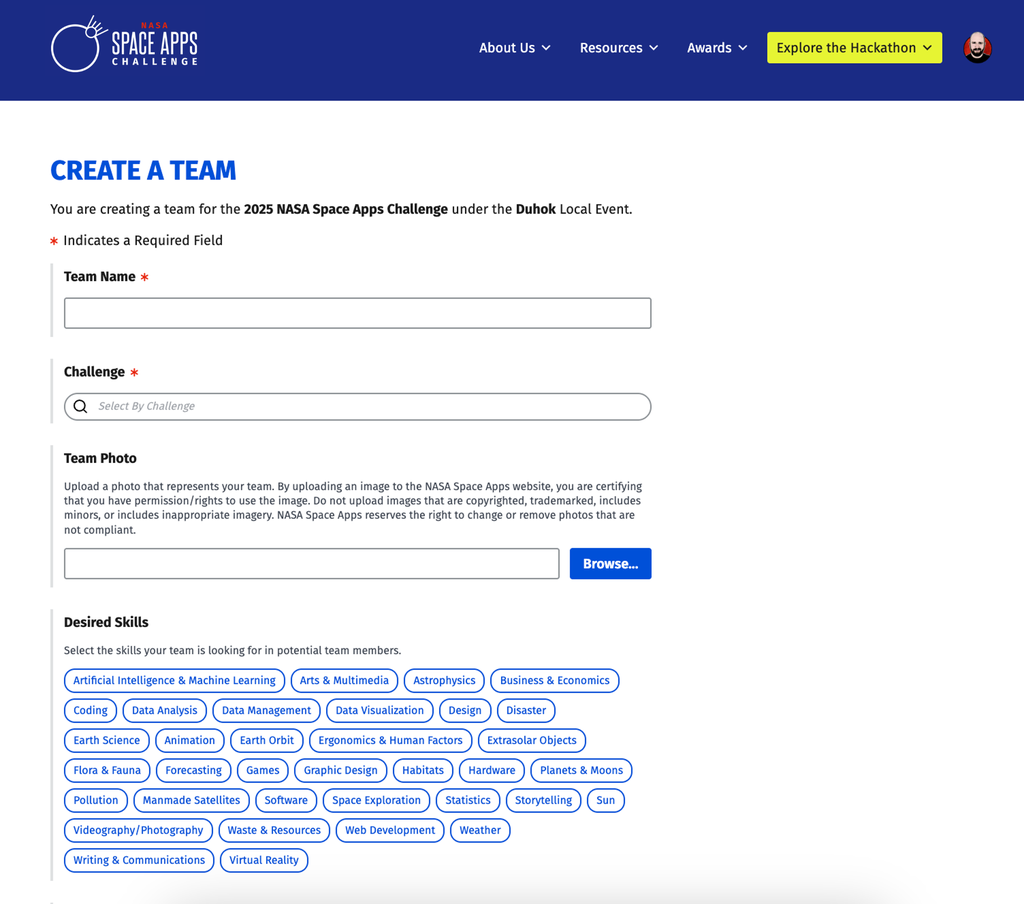
Once you choose your method to create a team, fill out the required fields to complete the “Create a Team” form (see example below). You are now the Team Owner!

Team Photo: A team photo is not required. However, if you’d like to upload an image, photos should be in compliance with the Participant Terms & Conditions, including not featuring the images or likenesses of persons under the age of 18. NASA Space Apps reserves the right to remove any content that is not compliant with the Terms & Conditions.

Create a Team

Managing Your Team as a Team Owner

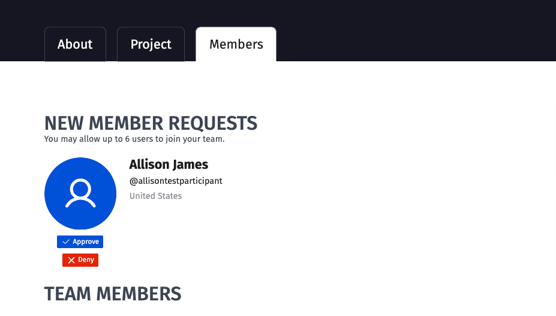
Team Management: As the Team Owner, you will have the ability to approve/deny team member requests, remove members from your team, or delete the team.

Team Member Requests: Team Owners can approve or deny requests to join their team by navigating to the "Members" tab of their team page. When a participant requests to join a team, an email is sent to the Team Owner. The Team Owner can approve or deny the request from the "Members" tab. The participant will then receive an email letting them know if they have been accepted or denied. We recommend responding to requests quickly.

Team Member

Team Communications: As a Team Owner, you are required to include information on where team members can connect. Team Owners will see a “Team Contact Information” field when editing the “About” tab on their team page. Please enter your preferred contact information here, such as a third-party communications app or email, so that team members can easily get in touch with you and other team members. The information you put here will appear on the “Members” tab of your team page. This information is only viewable for members of your team. Your team members will rely on this information to successfully connect with one another.

Changing Your Team Owner: If you wish to change the owner of your team, you may do so on the "About" tab of your team page under the Team Owner section. In the dropdown, select another member of the team, then click “Publish” in order to save the changes. Note: Only the existing Team Owner will be able to assign a new Team Owner. If your Team Owner is unresponsive and has not assigned a new Team Owner, then you will have to create a new team.

Deleting a Team: All changes to your team can be made under the "Members" tab of the team page. Here you can:

  • Team Owners may remove team members if they no longer want them on the team. They may do this by clicking the “Remove” button next to a team member’s name.
  • If the Team Owner decides to leave the team, they will be prompted to choose an existing team member to become the new Team Owner.
  • The Team Owner can delete the team by clicking the red “Delete Team” at the bottom of the page. Please inform all team members prior to deleting your team. To delete a team, the Team Owner must navigate to the "Members" tab and click on the “Delete Team” button in the section on the right side of the page. Deleting a team will remove all content entered on the Project and Details tabs, so only do this if you are absolutely sure you wish to delete all of the work your team has entered on the site.

Deleting a Team_1

Joining an Existing Team

Method 1: From the "Find a Team" Page

  1. From the NASA Space Apps main menu, select “Explore the Hackathon” -> “Find a Team.”
Find_a_Team_Join.logo

Method 2: From the "Challenges" Page

  1. From the NASA Space Apps main menu, select “Explore the Hackathon” -> “Challenges.”
  2. Find and select a challenge you’re interested in.
  3. Navigate to the Teams tab.
Create Team_Challenges

Method 3: From Your Local Event Page

  1. Go to your profile icon and select "My Local Event."
  2. Navigate to the "Teams" tab.
My Local Event Page_Seeking Members

Once you choose a method to search for a team, you should then:

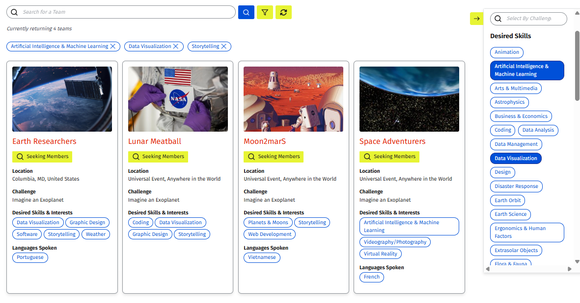
  1. Search for a specific team or browse the list of teams (see example of the filtered teams search below).
  2. Look for teams with the yellow “Seeking Members” tag. We recommend finding a team at the same local event that you have registered for as this is a requirement for project submission.
  3. Click on a team you are interested in to learn more.
  4. Once you are ready to join, click the “Request to Join Team” button.
  5. Write a short summary about who you are and why you want to join the team, then submit your request. Please do not share private information like your age, address, etc.
  6. You will then receive an email letting you know if your request was approved or denied.
Team Formation Desired Skills

Connecting With Your Team

Once your request to join a team is approved, reach out to your Team Owner as soon as possible. Your Team Owner’s contact information will be on the “About” tab of your team page. This will ensure you can connect with fellow team members and begin work on your project. If your Team Owner is unresponsive or you want to leave a team for any reason, you can do so by selecting the “Leave Team” option at the bottom of the Members tab on your team page.

You can also search for teams and chat with potential team members in the Find a Team category of Space Apps Connect once it opens on November 3.

Local Event Participation & Judging

Your team’s Local Event is automatically assigned to the Local Event of the Team Owner. All team members must be confirmed participants at the same Local Event in order for your team’s project to be eligible for awards.

If you are waitlisted for a Local Event, please reach out to the Local Lead to request acceptance to the event. If the Local Lead declines or does not respond, each member of the team should switch to another Local Event that has room for all participants or the Universal Event.

Editing Team Pages

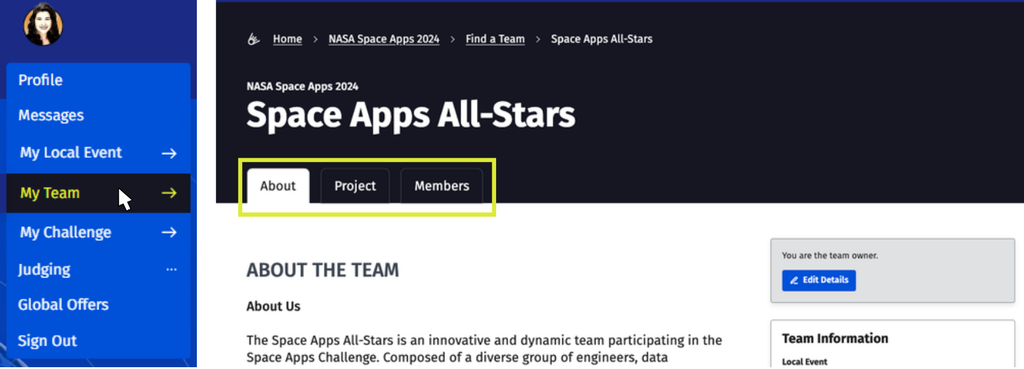
You can access your team page by clicking on your profile icon on the NASA Space Apps main menu. Click on “My Team,” which will take you to your team page. After navigating to your team’s page, you will see three tabs available for editing:

My Team
About Tab

Navigate to your team’s page, then go to the blue “Edit Details” button on the right side. This tab displays information about your team and is divided into three categories:

  1. Name and Summary
  2. Team Formation
  3. About the Team
Project Tab

Use this tab to access your project page and submit your project for judging. Start by selecting the blue “Edit Project” button on the right side of the screen. Project tabs will open for editing once the hackathon begins on November 14 at 9:00 a.m. (local time). This is the page that the judges will review.

Members Tab

This section displays all team members and allows you to make changes to your team if you are a Team Owner, including approving/denying team member requests, leaving a team, removing team members, or deleting a team.

Choosing a Challenge

Challenges are developed by NASA Subject Matter Experts (SMEs) and encompass a wide variety of topics from Earth and space science to the arts.

View the 2026 Challenges

When and where will the challenges be published?

The 2026 challenges can be read here. We encourage you to review each challenge statement and select one for your team project before the hackathon starts.

Can people start working on the challenges as soon as they are published?

We appreciate the enthusiasm of participants who want to start as early as possible. However, participants should NOT begin working on their project until the hackathon begins on November 14, 2026 (9:00 a.m. local time) to ensure a fair and equitable process.

Since the NASA Space Apps Challenge is held over the course of only two days, participants are not expected to submit a fully developed project at the end.

What if I have questions about one of the challenges or datasets?

Questions about challenges or supporting resources can be asked in Space Apps Connect in the week prior to and during the hackathon. NASA Space Apps Navigators and NASA subject matter experts will be available to answer your challenge and data-related questions.

Is it mandatory to pick one of the challenges?

To be eligible for Global Judging and Global Awards, teams must respond to one of the challenges.

Can our team work on more than one challenge?

No, teams are only permitted to work on one challenge.

My team has decided to tackle a different challenge. However, we’ve already created our team page. What should we do?

If you’ve already created a team but have changed your mind about which challenge you want to tackle, you are welcome to pick a new challenge. The Team Owner can do this by choosing the blue “Edit Details” option on your team's About page.